
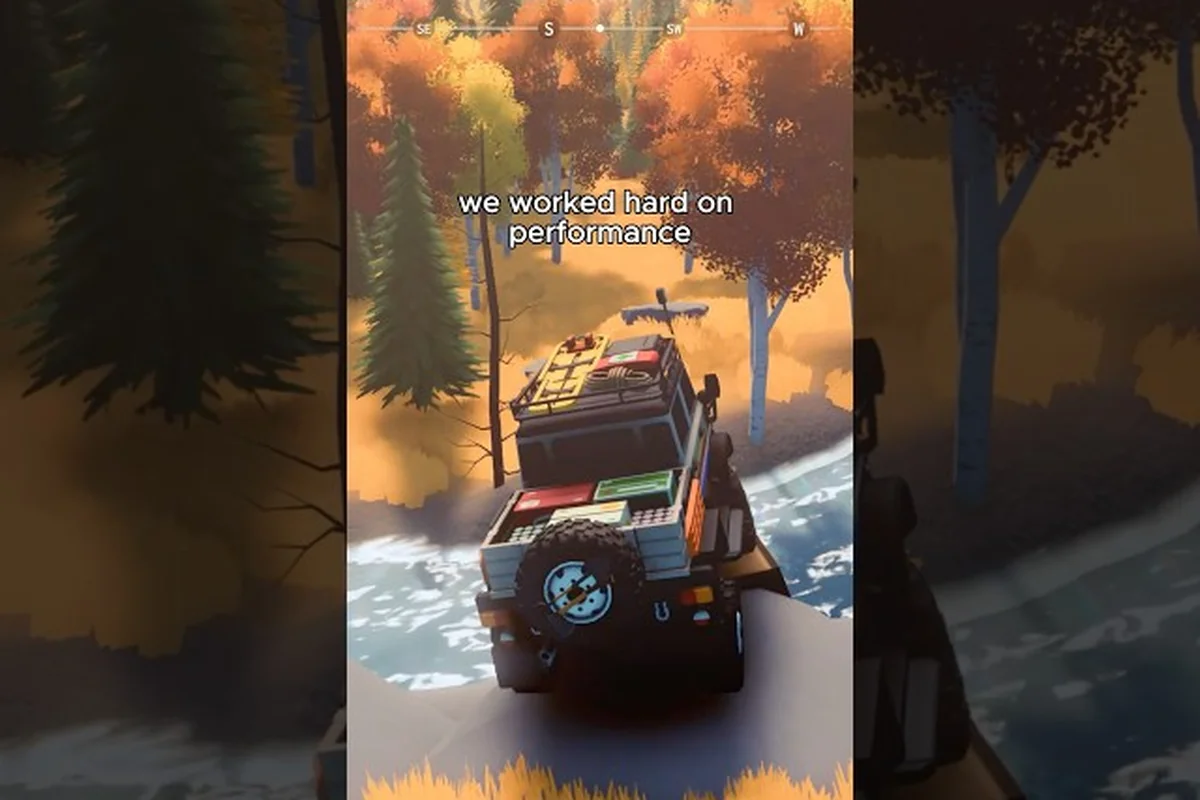
Over the Hill, the off-road exploration game from Funselektor Labs Inc., launched on Steam on October 14, 2026, and players across Linux, macOS, and various controller setups are now asking what the game actually supports. Over the Hill Linux support is the most common question, because Steam Deck and desktop Linux users form a large slice of the off-road sim community, and the developer has not yet shipped a native client. This guide breaks down the current state of Over the Hill Mac support, the Proton and Proton GE workarounds that work today, which controllers and wheels are best supported, and how the accessibility options compare so you can pick the right setup before you hit the trails.
Over the Hill Linux Support and Proton Compatibility
Over the Hill ships as a Windows-only Steam build, so the entire Linux experience depends on Valve's compatibility layer. The game does not yet carry the Steam Deck Verified badge, but community testing in Proton Experimental and Proton-GE has produced consistent results for most desktop distros. A handful of crashes, audio quirks, and HUD scaling bugs have been reported by Linux players, and the rest of this section walks through what is stable, what is broken, and how to get the cleanest launch.
Current State of the Native Linux Client
Funselektor has not announced a native Linux port, and there is no entry for over the hill linux support in the SteamOS compatibility database yet. The official FAQ pinned in the Steam community confirms Mac support is not planned for the initial release, but Linux and Mac were both flagged as possible future considerations. Until then, every Linux launch is routed through a translation layer, which means the Steam Deck experience is essentially a Proton experience.
-
Steam Deck status: not officially Verified, but launchable through Proton-GE
-
SteamOS native client: not shipped
-
Proton Experimental: most desktop sessions launch and play
-
Proton-GE: best stability for Steam Deck and handheld PCs
-
Native Vulkan renderer: not present; D3D11 to Vulkan translation is required
| Linux Build | Launch | Audio | Performance | Stability |
|---|---|---|---|---|
| Proton Experimental (Steam Deck) | Yes | Crackle on first map load | 30-45 FPS | Occasional crash on quit |
| Proton-GE (Steam Deck) | Yes | Clean | 40-55 FPS | Stable |
| Proton Experimental (Arch/Manjaro) | Yes | Clean | Locked 60 FPS | Stable |
| Proton-GE (Ubuntu 24.04 LTS) | Yes | Clean | Locked 60 FPS | Stable |
| Proton Experimental (Fedora 41) | Yes | Minor hiss | 55-60 FPS | One crash per session |
For most players on a Steam Deck, swapping the compatibility tool to Proton-GE and forcing the DX11 to Vulkan path is the cleanest approach. According to community data, this combo also fixes the softlock some users hit on the recovery mission screen, because the bug is tied to how D3D11 handles certain memory allocation calls that Proton Experimental mishandles.
Proton-GE Setup and the Steam Deck Workflow
Proton-GE is a community-maintained build of Proton that ships newer patches, dxvk, and vkd3d-proton versions than Valve's official releases. For Over the Hill, it solves the audio crackle on first map load, improves frame pacing on Steam Deck, and resolves the recovery mission softlock in most reports. The setup is straightforward and only takes a few minutes. If you also need to squeeze more performance out of the handheld, the upscaling and Steam Deck settings guide covers the FSR and resolution sliders that pair well with the Proton-GE stack.
-
Install ProtonUp-Qt from your distro's package manager or via Flatpak
-
Launch ProtonUp-Qt and download the latest GE-Proton release
-
In Steam, right-click Over the Hill, choose Properties → Compatibility
-
Check Force the use of a specific Steam Play compatibility tool
-
Select the GE-Proton version you just installed
-
Optionally add
PROTON_USE_WINED3D=1to the launch options for older GPUs
Over the Hill Mac Support and Apple Silicon Status
Over the Hill is not officially available for macOS, and Apple Silicon support is not in scope for the initial Steam release. The pinned FAQ in the Steam community discussion makes this explicit, and the developer has stated that Mac may be considered after the Windows launch stabilizes. Until that day arrives, Mac players have two main options: run the game on a Windows partition or remote-stream from a Windows machine, and neither delivers the native experience Apple users typically expect.
Why Mac Is Not in the Initial Release
Funselektor's engine build is wired to DirectX 11 and uses several Windows-only middleware libraries. The team has confirmed that porting to Metal would require a non-trivial rewrite, and that effort is competing with the upcoming PlayStation 5, Xbox Series X|S, and Switch 2 versions. According to the official FAQ, those console targets are dated to 2027, which is also the earliest window in which a Mac build could realistically appear.
| Platform | Status | Release Window | Notes |
|---|---|---|---|
| Windows (Steam) | Released | Oct 14, 2026 | Native build, full support |
| Steam Deck (Linux) | Playable via Proton | Oct 14, 2026 | Proton-GE recommended |
| macOS (Intel) | Not supported | TBD | No native or Proton path |
| macOS (Apple Silicon) | Not supported | TBD | No native or CrossOver path |
| PlayStation 5 | In development | 2027 | Console launch window |
| Xbox Series X|S | In development | 2027 | Console launch window |
| Nintendo Switch 2 | In development | 2027 | Console launch window |
Practical Workarounds for Mac Players
Players who already own the game on Steam and need to play on a Mac can fall back to GeForce NOW, Boosteroid, or a Windows partition on Apple Silicon. Cloud streaming bypasses the native requirement entirely, because the heavy lifting happens on a Windows server and the client only needs to decode the video stream. According to community reports, latency is acceptable for free roam but starts to feel sluggish on tight recovery missions, where the 100-200 ms added input lag matters more than during the slow scenic drives the game is best known for.
-
GeForce NOW — the most reliable option, RTX sessions stream at 60 FPS
-
Boosteroid — slightly higher latency, but works on older Intel Macs
-
CrossOver + DXVK — not yet functional for Over the Hill, no confirmed launch
-
Windows partition (Asahi Linux or Boot Camp) — works, but defeats the purpose of staying on macOS
-
Remote play from a Windows host — works for LAN setups, not practical over the public internet
Over the Hill Controller Support and Best Layouts
Over the Hill ships with Full controller support according to the Steam store page, and the game is built primarily around a gamepad input model. Keyboard and mouse work as a fallback, but the off-road driving feel is designed around the right trigger as the throttle and the left trigger as the brake. This section covers which controllers are recognized out of the box, the best controller layout for technical trails, and how to remap the secondary stick if you want full camera control.
Recognized Controllers Out of the Box
The Steam Input layer recognizes nearly every popular controller when the game is launched through Steam, and a generic Xbox 360 profile is auto-applied when no specific gamepad is detected. The official input pipeline reads as XInput for Xbox-compatible pads, DirectInput for older or third-party pads, and HID for PlayStation, Switch, and generic Bluetooth gamepads. In practice, every pad listed below is fully playable without manual binding, and the developer has published community-tested Steam Input presets for the most popular models.
| Controller | Connection | Auto-Bind | Notes |
|---|---|---|---|
| Xbox Series X|S Wireless | Bluetooth / USB | Yes | Triggers feel analog, best for trails |
| Xbox One Wireless | Bluetooth / USB | Yes | Identical layout to Series pads |
| Xbox 360 Wireless | Wireless adapter | Yes | Legacy option, fully supported |
| PlayStation 5 DualSense | USB | Yes | Adaptive triggers disabled by default |
| PlayStation 4 DualShock 4 | Bluetooth / USB | Yes | Touchpad maps to handbrake |
| Nintendo Switch Pro | Bluetooth / USB | Yes | No HD rumble on free roam |
| Steam Controller | USB / Bluetooth | Yes | Gyro aim works for camera look |
| Steam Deck controls | Built-in | Yes | Back buttons map to gear shift |
Best Controller Layout for Off-Road Trails
The default binding works for casual drives, but technical recovery missions benefit from a remapped layout that keeps the camera free while you shift between low range and high range. The community-recommended preset uses the right trigger for throttle, the left trigger for brake, the right bumper for high range, the left bumper for low range, and the right stick for full camera control. The D-pad is reserved for the in-game map, and the face buttons are kept on the default A confirm, B cancel, X handbrake, and Y horn bindings. This binding is widely shared in the Steam community and pairs nicely with the wider controller primer in the tips for new players guide, which covers the difference between low range and high range in detail.
-
Right trigger — analog throttle
-
Left trigger — analog brake
-
Right bumper (RB) — high range gear
-
Left bumper (LB) — low range gear
-
Right stick click (R3) — reset camera
-
Left stick click (L3) — engage handbrake
-
D-pad up/down — cycle waypoints
-
D-pad left/right — zoom map in and out
Over the Hill Wheel Support and Input Tradeoffs
Wheel support is the most nuanced topic in the Over the Hill input stack, because the game is tuned for low-speed technical driving rather than racing at the limit. The store page lists Full controller support but does not mention wheels, and the developer's FAQ has not yet confirmed a native force-feedback pipeline. Community tests with Logitech G29, G920, and Thrustmaster T150 show the game reads axis input and button presses correctly, but force feedback is currently absent and deadzones must be set manually through Steam Input.
Wheels That Work Today Through Steam Input
For wheels, the most reliable path is to enable Steam Input for generic gamepads and assign a custom preset. The Logitech G29/G920 is the most widely tested model, and players report that the wheel, pedals, and shifter all bind correctly. Thrustmaster T150 and T300 RS also work through the same layer, while Fanatec CSL DD users have reported that the game reads axis input but the paddle shifters are not always recognized. Force feedback is the missing piece in every case, and players who rely on resistance cues will need to lean on visual and audio feedback until the developer ships a proper wheel integration.
| Wheel | Wheel Axis | Pedals | Shifter | Force Feedback |
|---|---|---|---|---|
| Logitech G29 / G920 | Yes | Yes | Yes | Not active |
| Logitech G923 (Trueforce) | Yes | Yes | Yes | Detected, no effect |
| Thrustmaster T150 | Yes | Yes | N/A (paddles) | Not active |
| Thrustmaster T300 RS | Yes | Yes | Yes | Not active |
| Fanatec CSL DD | Yes | Yes | Sometimes | Not active |
| Fanatec GT DD Pro | Yes | Yes | Sometimes | Not active |
| Generic DirectInput wheel | Yes | Yes | No | Not active |
Keyboard vs Controller in Over the Hill
The keyboard vs controller tradeoff in Over the Hill is less dramatic than in a pure sim like Art of Rally, because the driving model is forgiving and the throttle response is heavily smoothed. Keyboard play is fully functional and uses WASD for movement, Space for handbrake, Shift for gear change, and Q/E for camera. A mouse can be added for finer camera control, but the steering is digital, which makes precision work on the recovery missions feel more like an arcade game than a true sim. Controller play, by contrast, uses analog input for the triggers, which lets you modulate throttle and brake pressure in ways the keyboard cannot match. For most players, the controller is the right call, and the keyboard remains a workable fallback for anyone who cannot use a gamepad.
| Input Method | Steering Feel | Throttle Control | Camera Control | Best Use |
|---|---|---|---|---|
| Keyboard only | Digital | Digital | Snap rotation | Casual drives, exploration |
| Keyboard + Mouse | Digital | Digital | Smooth mouse aim | Map work, photo mode |
| Xbox-style gamepad | Analog | Analog triggers | Full right stick | All content |
| PlayStation 5 DualSense | Analog | Adaptive triggers off | Full right stick | All content |
| Wheel + pedals | Analog (steering) | Analog (load cell) | Button-bound | Recovery missions (if FF is patched) |
Over the Hill Accessibility Options and Input Tweaks
Over the Hill is marketed as a relaxing, low-pressure experience, and the accessibility options reflect that ethos. The settings menu includes a full Accessibility tab with toggleable assists for steering, throttle, and stability, plus configurable deadzones for analog inputs. The game does not yet ship with full remapping for every command, but the combination of Steam Input layers and in-game assists covers most needs, and the developer has confirmed that more options are planned for the post-launch patch cycle.
Built-In Accessibility Options
The accessibility options in Over the Hill are organized into three categories: driving assists, input aids, and visual aids. The driving assists are the most impactful, because they let players of any skill level enjoy the recovery missions without the punishing precision a true off-road sim would require. The input aids cover deadzones and trigger sensitivity, and the visual aids cover HUD scaling, subtitle sizing, and colorblind-friendly markers for waypoints and recovery zones.
-
Automatic Gearbox — toggles between manual and automatic low/high range
-
Traction Control — three levels: Off, Light, Full
-
Stability Assist — reduces spin-outs on loose terrain
-
Trigger Deadzone — adjustable from 5% to 30%
-
Stick Deadzone — adjustable from 5% to 30%
-
Force Feedback Strength — reserved for future wheel support
-
HUD Scaling — 80%, 100%, 120%, 140%
-
Subtitle Size — Small, Medium, Large
| Accessibility Option | Default | Effect on Gameplay | Recommended For |
|---|---|---|---|
| Automatic Gearbox | Off | Removes manual low/high range | Beginners, one-handed play |
| Traction Control | Light | Reduces wheel spin on loose dirt | All players |
| Stability Assist | Off | Prevents rollovers on steep trails | Beginners |
| Trigger Deadzone | 10% | Adjusts throttle/brake sensitivity | Worn-out controllers |
| HUD Scaling | 100% | Adjusts UI element size | Steam Deck, low-vision players |
| Subtitle Size | Medium | Adjusts text size | Low-vision players |
Layering Steam Input on Top of the In-Game Options
The in-game accessibility options only get you so far, and players who need custom button bindings or full controller remapping should layer Steam Input on top of the native settings. Steam Input lets you bind any keyboard or mouse action to any controller button, swap the left and right stick outputs, add a touch menu for quick access to recovery mode, and use Action Sets to switch layouts on the fly. For players who stream the game to a handheld, the Steam Deck Gyro can be enabled for fine camera aim, and the back buttons can be mapped to low range, high range, handbrake, and horn for a clean four-button layout.
-
Action Sets — switch between Drive, Map, and Photo modes
-
Gyro on touch — fine camera aim while the right stick stays on the look axis
-
Back button binds — assign LB, RB, LT, and RT to anything
-
Radial menu — pop-up wheel for the most-used commands
-
Touch menu — grid of buttons for handheld play
According to the official Steam store page, the full feature list includes Full controller support, Steam Cloud, and Steam Achievements, all of which are wired through the same Steam Input pipeline. The community has leveraged this to ship community-tested presets for Xbox, PlayStation, Switch Pro, and Steam Deck controllers, and the developer is expected to publish official presets in a post-launch update.
Frequently Asked Questions
Does Over the Hill have official Linux support?
Not yet. Over the Hill Linux support currently relies on Proton Experimental or Proton-GE, because there is no native Linux client. The game is launchable on Steam Deck and most desktop distros, and Proton-GE is the most stable option based on community testing. Funselektor has not yet committed to a native Linux release, but the developer has stated Mac and Linux are under consideration for the post-launch roadmap.
Will Over the Hill ever come to Mac?
Over the Hill Mac support is not planned for the initial release, and Apple Silicon is not in scope either. The pinned FAQ in the Steam community confirms Mac may be considered in the future, and the earliest realistic window is sometime in 2027 once the PlayStation 5, Xbox Series X|S, and Switch 2 versions ship. Until then, Mac players can use GeForce NOW or a Windows partition as workarounds.
What is the best controller layout for Over the Hill?
The best controller layout uses the right trigger for throttle, the left trigger for brake, the right bumper for high range, the left bumper for low range, and the right stick for camera control. This binding keeps your thumbs free for the sticks while letting you shift gears on the fly, and it is the same preset the community has shared in the Steam discussion forums. The DualSense, Xbox Series, and Switch Pro controllers all map to this layout without manual edits.
Does Over the Hill support steering wheels?
Wheels are recognized as input devices through Steam Input, but the developer has not yet shipped force-feedback support. Logitech G29, G920, G923, Thrustmaster T150, and T300 RS all work for axis, pedal, and shifter input, and Fanatec wheels read axis data as well. Players who rely on resistance cues should wait for a post-launch wheel integration, or play with a controller until the patch lands.
Are there good accessibility options in Over the Hill?
Yes, the accessibility options in Over the Hill cover driving assists, input aids, and visual aids. The most useful toggles are the automatic gearbox, traction control, stability assist, trigger deadzone, and HUD scaling. Combined with Steam Input layers for full remapping, the game is approachable for one-handed play, low-vision players, and anyone who prefers a more relaxed off-road experience.