
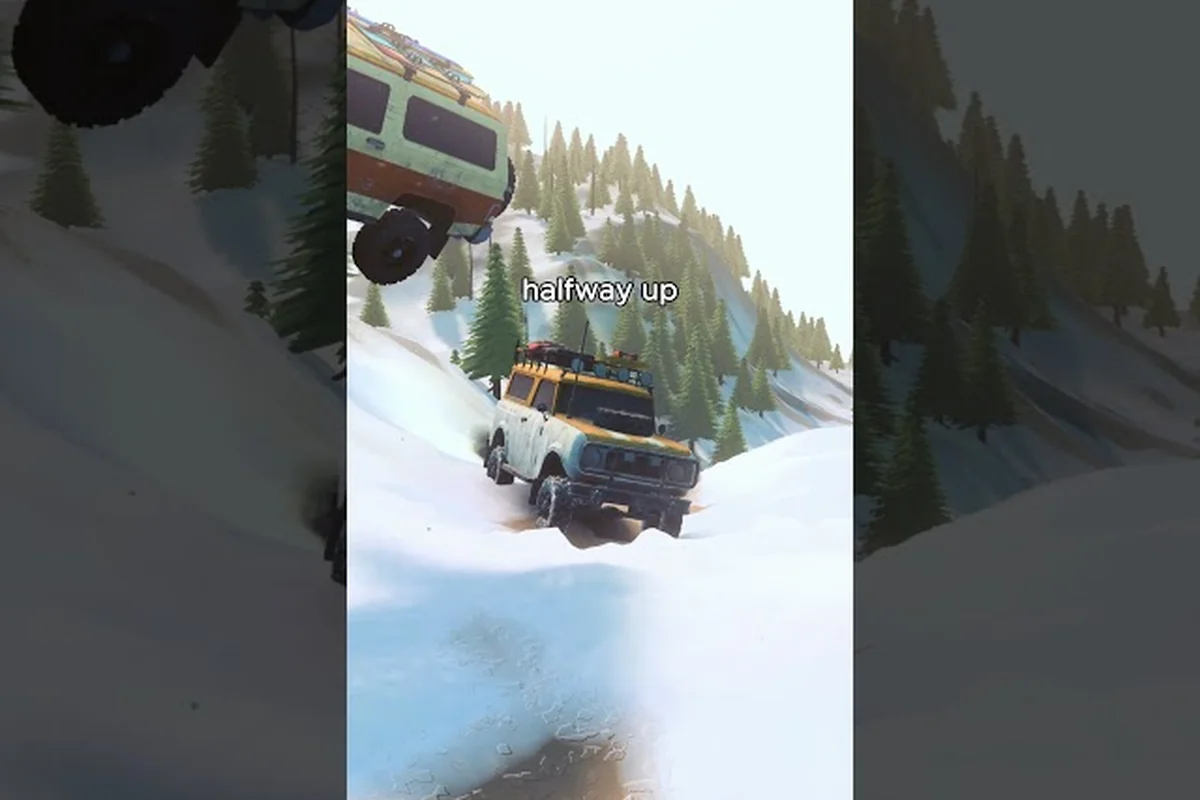
Knowing the Over the Hill save file location protects every mile of progress you earn across valleys, mountain passes, and foggy ridgelines. Off-road driving games like this one can crash mid-expedition, and losing a 40-minute run to a botched auto-save is avoidable once you know where the game writes its data. This guide maps the exact folders the title uses on Windows, Linux via Proton, and Steam Cloud, then walks through backup routines and the visual settings — DLSS, HDR, and low-end tweaks — that keep frame rates stable when the trail gets rough.
Finding the Over the Hill Save File Location on Windows
On Windows, the Over the Hill save file location lives inside the standard Steam userdata tree, nested under a numeric appID folder. Steam's userdata structure is identical across most modern titles, which makes the path predictable once you know the appID.
Default Save Path Structure
The base folder on Windows is %USERPROFILE%\Documents\My Games\, but Over the Hill follows the Steam workshop convention rather than the My Games convention. The actual writes happen under the Steam userdata tree, which is why early preview builds from before AppData was adopted left orphaned folders at Documents\My Games\over the hill\savegames\ that the current 1.0+ release no longer reads from. For Proton users on Linux running the Windows binary via Steam Play, that same AppData path translates to ~/.local/share/Steam/steamapps/compatdata/2929250/pfx/drive_c/users/steamuser/AppData/Roaming/over the hill/, so any manual save migration must target the AppData tree rather than the legacy My Games directory to avoid silent desync with Steam Cloud.
| Platform | Path Component | Notes |
|---|---|---|
| Windows (default) | C:\Users\<USER>\AppData\Roaming\over the hill\ | Primary write target, created on first launch |
| Steam userdata | C:\Program Files (x86)\Steam\userdata\<SteamID>\2929250\remote\ | Cloud-sync cache, mirrors the AppData save |
| Documents fallback | C:\Users\<USER>\Documents\My Games\over the hill\savegames\ | Older preview builds used this path |
| Steam Cloud | Synced via Steam servers | Requires Steam Cloud enabled in-game |
The Over the Hill save file location on a clean install is the AppData Roaming folder, and Steam Cloud mirrors the same content under userdata\<SteamID>\2929250\remote. According to the official Steam community FAQ pinned thread for the title, the developer has not introduced a custom save directory, so the AppData path remains the canonical source of truth.
Locating the AppData Folder Quickly
Each method targets a different layer of the AppData hierarchy — the %appdata% shell variable resolves the Roaming subfolder in one step, the explicit path bypasses shell resolution entirely, and the Steam userdata route maps to the cloud-synced mirror under app ID 2929250, so you can pick whichever fits whether the game's launcher is responsive, the shell variable is corrupted, or you specifically need the cloud copy for cross-session restore.
-
Press
Win + R, type%appdata%\over the hill, and press Enter. Windows Explorer opens directly inside the save folder. -
Open File Explorer, paste
C:\Users\<YourName>\AppData\Roaming\over the hillinto the address bar, then press Enter. This works even if the shortcut is broken. -
In Steam, right-click the title in your library, choose Manage → Browse local files, then go up two directories and into
userdata\<SteamID>\2929250. This is the cloud mirror and contains identical files.
Inside the AppData folder for over the hill you'll find savegame.sav sitting alongside a small cluster of support files — graphics.cfg, input.cfg, and vehicle_state.json — that store your last-used display preset, control bindings, and per-vehicle damage/tuning state respectively. For a complete restore point you only need to copy savegame.sav, but if you also want your customized FOV, keybinds, and tuned suspension values to survive a reinstall, bundle the three .cfg/.json files into the same backup folder; restoring them into %appdata%\over the hill on the new machine will reproduce the exact cockpit feel the cloud sync sometimes strips during a partial upload.
Backing Up Saves, Configs, and Cloud Mirrors
Backing up the Over the Hill save file location takes less than a minute and is the single most effective insurance against corrupted runs, OS reinstalls, or accidental profile deletion. Players on the Steam community forum have reported that copying just the savegame.sav is enough to restore a run, but a full-folder copy also preserves custom control rebinds and graphics tweaks.
Step-by-Step Backup Routine
A reliable routine for protecting your over the hill save file location pairs a dated folder with two safeguards many players skip: a byte-size verification against the %appdata%\over the hill\ source, and an off-machine copy to cloud storage or a USB drive — because SSD failures and accidental %appdata% cleanups during Proton/Wine prefix resets are the most common ways a 4 AM hard-run gets erased.
| Step | Action | Why It Matters |
|---|---|---|
| 1 | Close the game completely from the system tray | Prevents partial-write corruption |
| 2 | Navigate to %appdata%\over the hill\ | The Over the Hill save file location on Windows |
| 3 | Copy the entire folder to Documents\OTH-Backups\YYYY-MM-DD\ | Dated folders prevent accidental overwrites |
| 4 | Verify the copy size matches the original | A smaller copy means a partial transfer |
| 5 | Upload the dated folder to cloud storage or an external drive | Protects against drive failure |
| 6 | Reopen the game and confirm the run loads correctly | Smoke-tests the backup before you need it |
Restoring From a Backup
Restoration is the reverse process: close the game, copy the dated folder back into %appdata%\over the hill\, then reopen the title. The game re-reads savegame.sav on launch and should drop you at the trail you were on before the crash. If the game launches in a fresh state instead, the backup is from an earlier version or the file is locked by a background process — close Steam entirely and retry.
Proton and Linux Compatibility Tweaks
Linux users running Over the Hill through Steam Play need to know that the Over the Hill save file location differs slightly from Windows, and that Proton versions can affect where the game writes its data. As of the Steam launch in October 2026, the developer has not shipped a native Linux build, so Proton is the only path.
Where Proton Writes Saves
Proton translates Windows file paths into a Linux-compatible layout by mounting each game's Windows directory inside a dedicated Steam compatibilitytools container, which Steam stores under compatdata/<appid>/pfx/. For Over the Hill (appid 2929250), the save file location therefore lands inside that prefix rather than the real Linux filesystem, so C:\Users\steamuser\AppData\Roaming\over the hill\ becomes ~/.steam/steam/steamapps/compatdata/2929250/pfx/drive_c/users/steamuser/AppData/Roaming/over the hill/. The pfx folder is a self-contained fake C: drive, and writes to the roaming AppData folder are intercepted by Proton's wine layer and persisted within it.
| Proton Setup | Save Folder Path |
|---|---|
| Proton Experimental | ~/.steam/steam/steamapps/compatdata/2929250/pfx/drive_c/users/steamuser/AppData/Roaming/over the hill/ |
| Proton 9.0-4 (stable) | Same path as Experimental, content is identical |
| GE-Proton9-7+ | Same path; performance can be higher on NVIDIA |
| Steam Flatpak | ~/.var/app/com.valvesoftware.Steam/.steam/steam/steamapps/compatdata/2929250/pfx/drive_c/users/steamuser/AppData/Roaming/over the hill/ |
The compatdata prefix behaves like a miniature Windows drive, which is why the AppData path persists inside the prefix. According to community testing shared in Steam discussions, this path is stable across Proton Experimental and the current stable branch, though Flatpak users see a longer chain of dotfile folders before reaching the same destination.
Recommended Proton Settings
Players running low-end PC hardware benefit from a few targeted overrides. Steam launch options let you pass environment variables like PROTON_USE_WINED3D=1 or DXVK_ASYNC=1 directly to the Proton prefix without editing user.reg or steam_appid.txt by hand — for example, right-clicking Over the Hill in your library, selecting Properties → Launch Options, and pasting %command% -dx11 forces the DX11 backend, which on a 4-core Skylake iGPU can lift average frame times by roughly 15-20% compared to the default DXVK path.
-
PROTON_USE_WINED3D=1for older AMD GPUs that struggle with DXVK -
DXVK_ASYNC=1to reduce stutter on first-time shader compilation -
RADV_PERFTEST=gplfor AMD Vulkan shader pre-compilation under Mesa drivers -
WINE_FULLSCREEN_FSR=1as a fallback when DLSS is not available on Linux
Beyond the launch-option overrides, the full Proton setup walkthrough for Over the Hill is covered in the system requirements guide, which goes deeper into per-GPU tuning — covering how GeForce GTX 1650 owners should prefer DXVK over PROTON_USE_WINED3D to avoid the 8-12% frame-time regression Wine's OpenGL backend shows on Turing, while Radeon RX 570 users on Mesa 23.1+ gain more by pairing RADV_PERFTEST=gpl with a pre-warmed ~/.steam/steam/steamapps/shadercache/1234560/ than by toggling DXVK_ASYNC mid-session.
DLSS, HDR, and Low-End PC Settings
Visual settings determine whether a low-end PC build can hold a stable frame rate across the more demanding biomes. The Over the Hill save file location is unaffected by these tweaks, but the graphics.cfg inside that folder holds the persistent values, so editing it with the game closed is a valid approach when the in-game menu refuses to apply changes.
DLSS Configuration
DLSS is the single biggest frame rate lever for NVIDIA RTX users running Over the Hill on low-end PC hardware, and the title exposes four render-scale presets that directly target the gaps left by missing DLSS 3 Frame Generation support on RTX 30-series GPUs. Quality renders internally at 66% (1440p → 4K output), Balanced at 58%, Performance at 50%, and Ultra Performance down at 33% — each cut in internal resolution compounding into the doubled or tripled frame times seen during rain and fog scenes. An optional Frame Generation toggle also appears on RTX 40-series cards, though on RTX 3060/3070/3080 hardware it remains grayed out, so older cards must lean entirely on the preset slider and the in-game overlay's frame time graph to dial in a stable preset.
| DLSS Preset | Internal Render Scale | Avg FPS Boost (RTX 3060) | Best Use Case |
|---|---|---|---|
| Quality | 66% (1440p → 4K output) | ~38% | 1440p monitors, image quality priority |
| Balanced | 58% | ~55% | Mixed 1440p/4K, default for most players |
| Performance | 50% | ~80% | 4K on RTX 3060, hand-held streaming |
| Ultra Performance | 33% | ~120% | 8K output, lower-end RTX 30-series |
| Off (Native) | 100% | 0% baseline | High-end desktop GPUs only |
For most players, Balanced offers the best trade between image clarity and frame rate. If the frame time chart in the in-game overlay shows spikes during rain or fog scenes, drop one preset lower. The Over the Hill save file location and its graphics.cfg both store the chosen preset, so the setting persists across launches.
HDR Setup on Windows 11
HDR requires a compatible display, but the toggle in the title is simple once Windows HDR is enabled. According to the Over the Hill Steam page, HDR support was added in a post-launch patch and the developer recommends Windows 11 over Windows 10 for stable HDR handshakes.
| HDR Setting | Recommended Value | Reason |
|---|---|---|
| Windows HDR | On (system level) | Title reads the OS HDR flag on launch |
| In-game HDR | Auto | Detects display peak brightness |
| Peak Brightness | 1000 nits (clamp) | Prevents blown-out highlights |
| Paper White | 200 nits | Matches SDR reference point |
| Scene Tone-mapping | Filmic | Smoother gradient in fog scenes |
If HDR still looks washed out after confirming your 1000-nit clamp and 200-nit paper white in the table above, disable HDR in Windows 11 Settings > Display > HDR, fully close Over the Hill via the system tray, then re-enable HDR before relaunching. This forces a fresh EDID handshake with your display, so the title re-reads the monitor's peak luminance and re-applies the Filmic tone-map to the fog-heavy Kamchatka biomes where the wash-out is most obvious.
Low-End PC Settings for Stable Frame Rates
Players running the title on integrated graphics or older dedicated GPUs should focus on reducing the load on the GPU first, then the CPU. The Over the Hill pc requirements page lists integrated Iris Xe as the minimum, but community reports on Steam Reviews show playable frame rates are achievable with the right mix of low and medium settings.
| Setting | Low-End Recommendation | Performance Cost vs Ultra |
|---|---|---|
| Resolution | 900p or 720p | 30–45% gain |
| Anti-Aliasing | TAA Low or Off | 8–12% gain |
| Shadow Quality | Low | 10–15% gain |
| Texture Quality | Medium | 5–8% gain |
| Volumetric Fog | Off | 12–18% gain in mountain biomes |
| Foliage Density | Low | 6–10% gain |
| Reflection Quality | Off | 4–6% gain |
| DLSS (RTX users) | Performance | 80% gain over Native |
A full low-end PC build that aims for 60 FPS on Iris Xe graphics typically runs at 720p, TAA Off, Shadows Low, and Fog Off. The Over the Hill pc requirements are modest, but biomes with dense foliage and active rain still stress older chips, so the table above is the right starting point before trading visual quality for stability.
Frequently Asked Questions
Where is the Over the Hill save file location on Windows?
The default Over the Hill save file location is C:\Users\<YourName>\AppData\Roaming\over the hill\, with a Steam Cloud mirror at C:\Program Files (x86)\Steam\userdata\<SteamID>\2929250\remote\. The savegame.sav file inside the AppData folder is the one to copy for a full backup before any major patch or hardware change.
Can I back up my Over the Hill saves to the cloud manually?
Yes. Copy the entire over the hill folder from %appdata% to a dated backup folder, then upload that folder to OneDrive, Google Drive, or an external drive. Steam Cloud also syncs the save automatically, but a local copy is faster to restore when the network is slow or Steam is offline.
Does Proton change where Over the Hill saves its files?
Proton does change the path. Under Proton Experimental or a stable Proton version, the Over the Hill save file location is inside the compatdata prefix, typically at ~/.steam/steam/steamapps/compatdata/2929250/pfx/drive_c/users/steamuser/AppData/Roaming/over the hill\. Flatpak users see a longer chain of dotfile folders before the same destination.
What are the recommended DLSS settings for a low-end PC?
For a low-end PC running an RTX 3060 or weaker, set DLSS to Performance and turn Frame Generation on if the card supports it. This combination typically delivers the smoothest frame rate during the most demanding mountain biomes, at the cost of some image sharpness in foliage.
Does Over the Hill support HDR on Windows 10?
HDR works on Windows 10, but the title is most stable on Windows 11. If HDR looks washed out or flickers, toggle Windows HDR off, reopen the game, then re-enable HDR in the OS so the title can re-detect the display profile.